Matte ML
Matte ML is a unified matte-generation workflow that bundles Mask ML, Matte Assist ML, Matte Refine ML, and Matte Deflicker ML into a single streamlined compound node.
See the Mask ML, Matte Assist ML, Matte Refine ML, and Matte Deflicker ML nodes for more information.
1 Add a Matte ML node from the Nodes > Key tab and connect it to the source node.
2 Click on the Mask ML text in the Parameters window.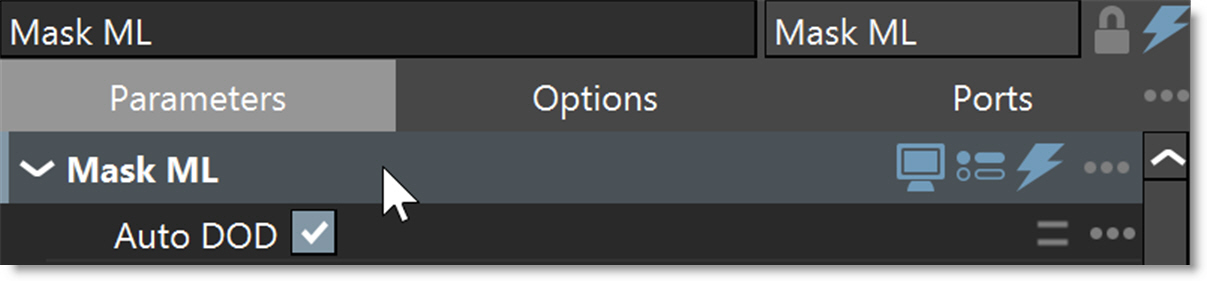
This views and edits the Mask ML portion of the compound node.
3 The Mask ML > Add tool is selected by default, so click within the object where you want to create a mask. Add additional points as needed.
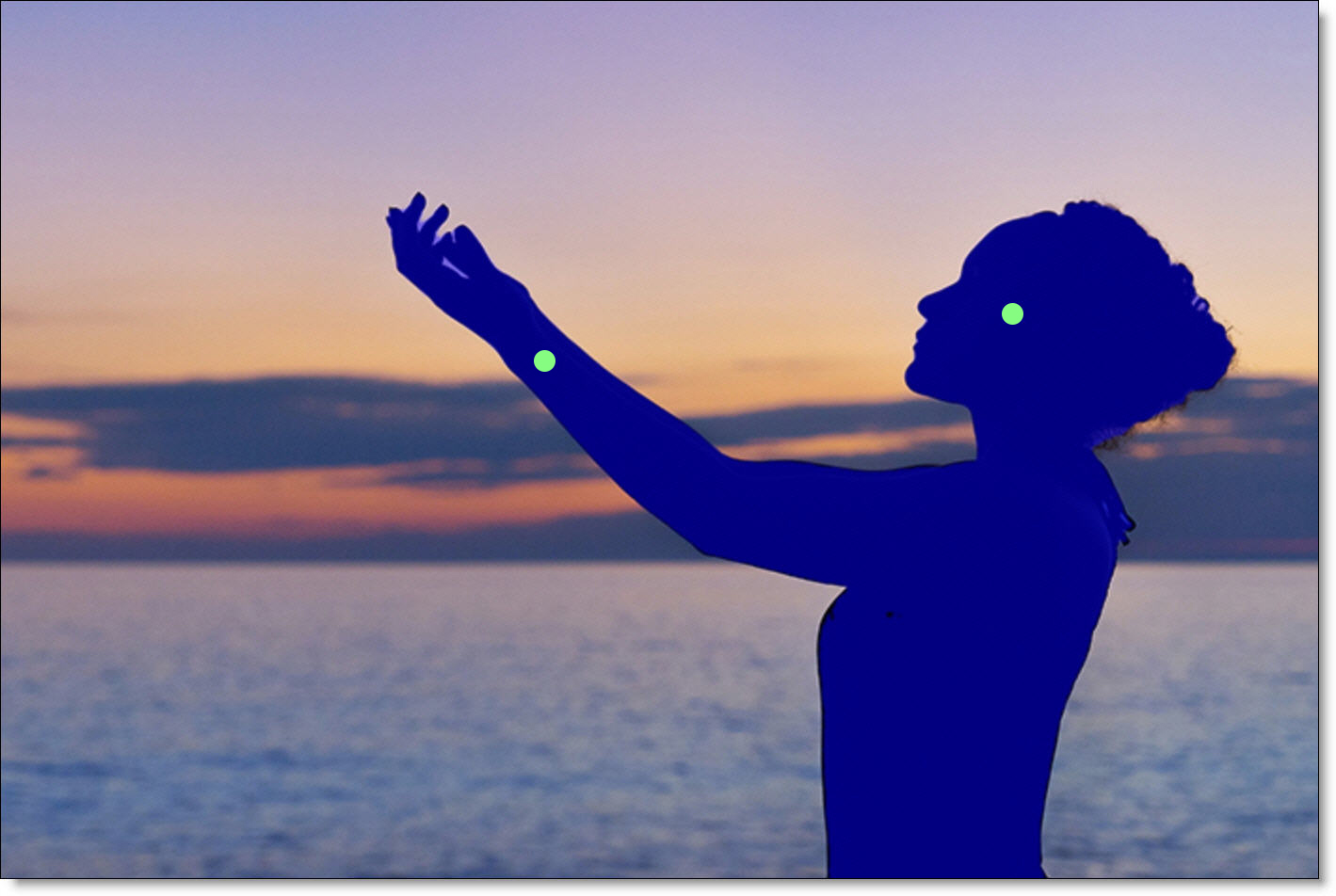
With each click, a green point appears, a mask is generated, an alpha overlay appears and an object is automatically created in the Object List.
4 Click on the Matte Assist ML text in the Parameters window.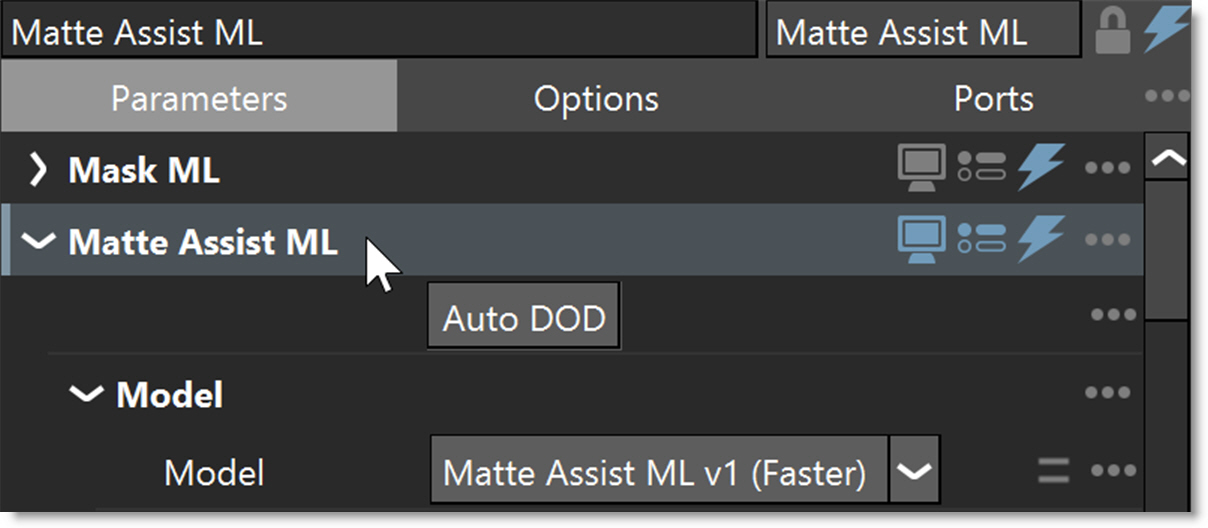
This views and edits the Matte Assist ML portion of the compound node.
5 Click Auto DOD to analyze the sequence which inserts a DOD (Domain of Definition) node after the source and automatically crops the image prior to matting.
This tighter region produces a more accurate matte by limiting processing to the active image area.
6 Play the sequence to generate the matte.
If the matte is not accurate enough, create additional Mask ML keyframes.
7 Select Mask ML and create keyframes at frames where the matte was not accurate enough.
8 Select Matte Assist ML and play the sequence again to generate the revised matte using the additional keyframes.
Matte Assist ML produces a binary matte, but the compound node immediately hands that result to Matte Refine ML, which converts those hard edges into a natural, partially transparent boundary. This lets the workflow start with a clean foreground/background separation and then evolve it into a refined edge.
9 Click on the Matte Refine ML text in the parameters window.
This views and edits the Matte Refine ML portion of the compound node.
Matte Refine ML produces fine hair detail with more natural edges.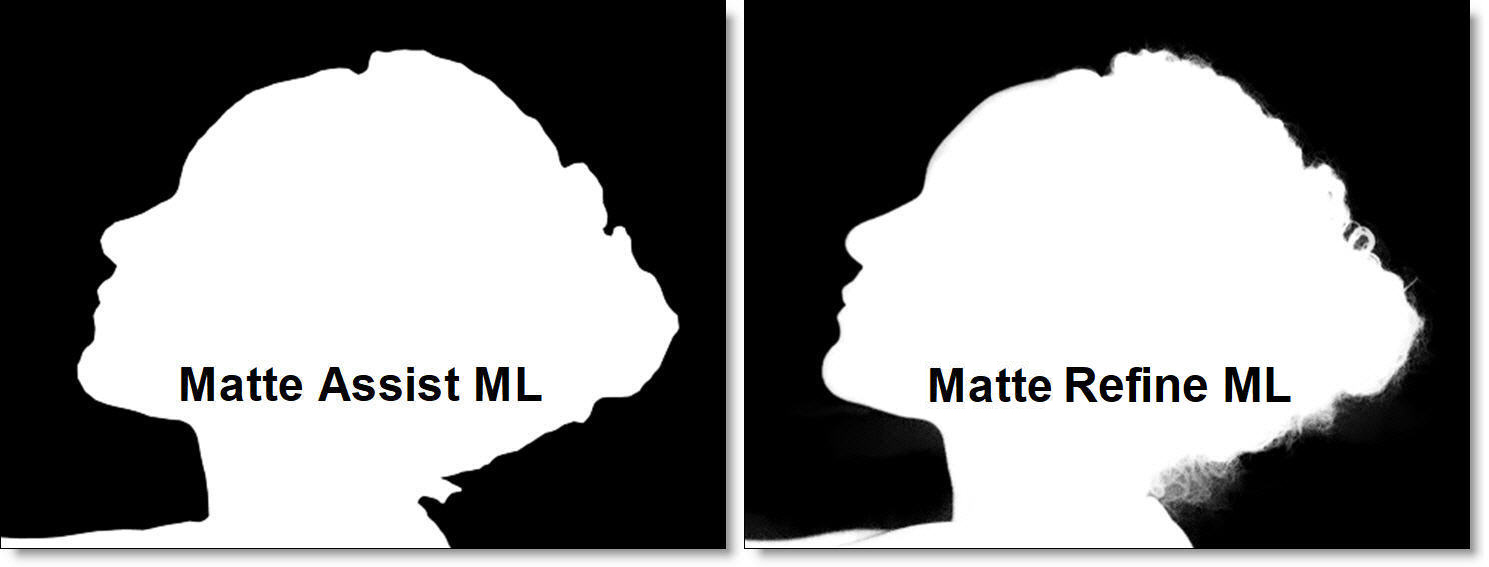
10 If you see frame-to-frame jitter, click on the Matte Deflicker ML text in the Parameters window and Enable it.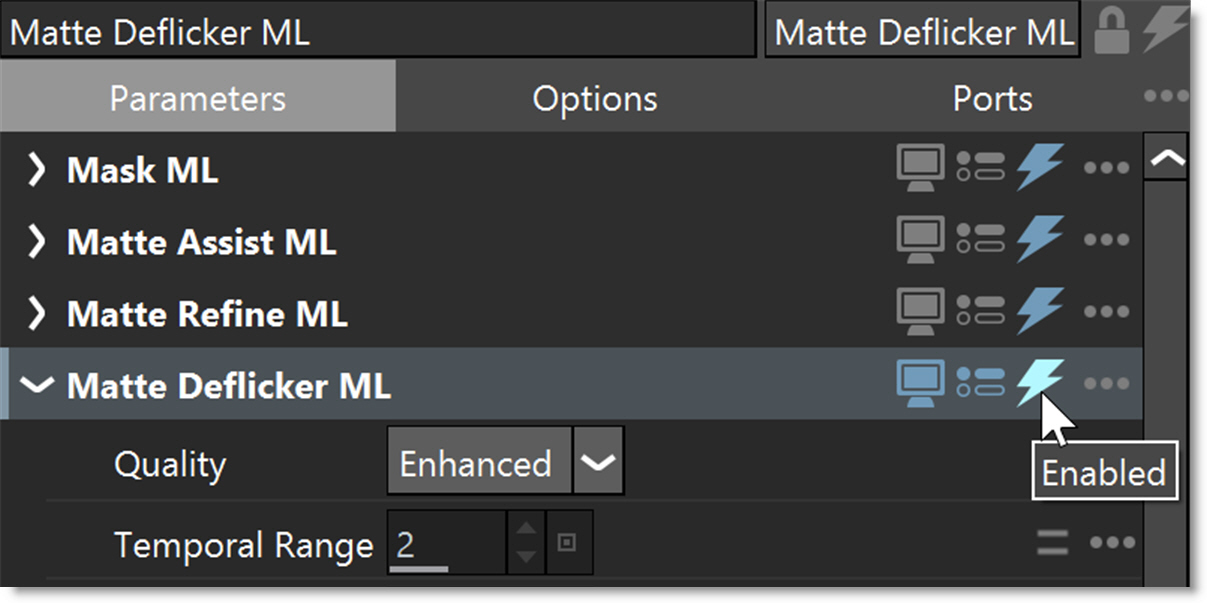
Matte Deflicker ML evaluates consecutive frames for luminance, edge, and density fluctuations, then applies a learned temporal smoothing model that preserves fine detail while eliminating jitter across the sequence.
11 To improve matte quality at the cost of longer render times, use the Matte Assist ML (Better) model and set Matte Refine ML > Quality and Matte Deflicker ML > Quality to Enhanced.