Depth Map ML
Description
Depth Map ML analyzes an image and determines how far away each part of the scene is. Use the depth map with other depth objects in the Depth node, control blur or color correct based on depth in the Depth of Field and Color Correct nodes, and create mattes according to a particular depth level.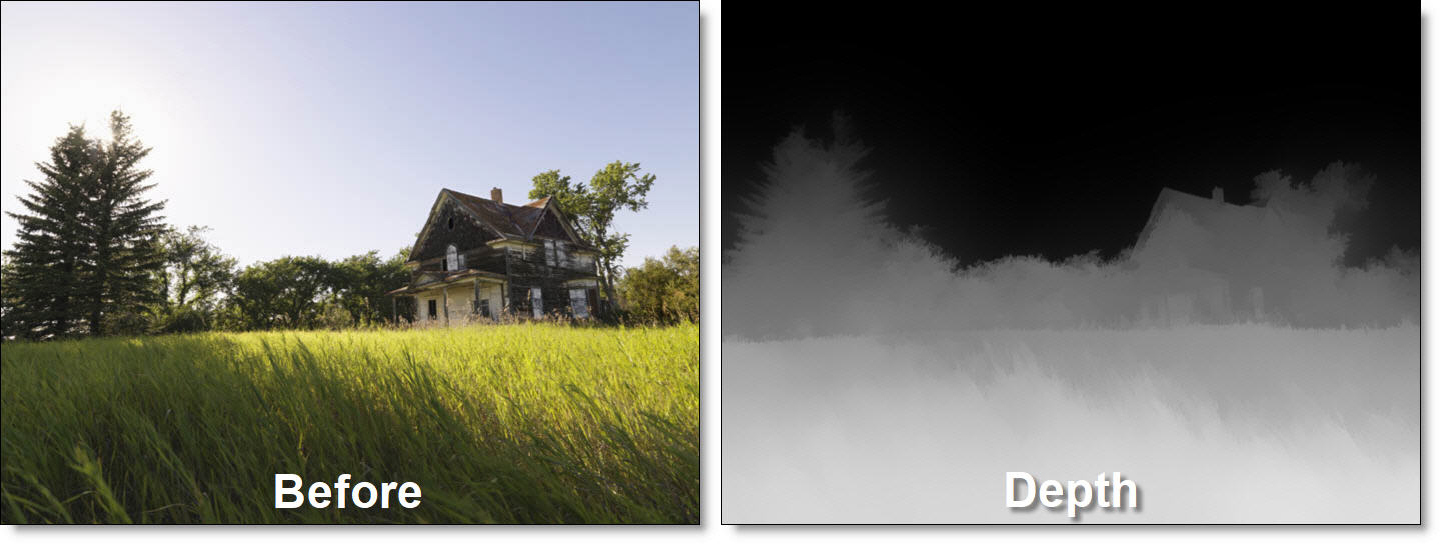
Node Group
AI/ML, Image, Key.
Controls
Model
Model
Choose which ML model to use.
Inference Shape
Controls the aspect ratio of the image used by the depth estimation model. This determines how the source image is resized for processing and can affect the accuracy of depth estimation.
Batch Matching
The v3 depth models process a few frames at a time, in batches. Batch Matching sets how those batches are joined into one continuous depth clip.
Blend
Neighboring batches are cross-faded over the frames they share. Each frame renders on its own, with no up-front processing. Fastest, but depth levels can drift slowly ("breathe") over a long shot.
Whole Clip
The first time any frame is rendered, the whole session is processed. Each batch is scaled and shifted to match the one before it. Then the whole clip is matched to one more set of frames spread evenly across the shot. This gives one consistent depth scale for the whole clip, at the cost of processing the full session up front and some extra processing.
Whole Clip + Anchors
Like Whole Clip, but every batch is also given a few frames from elsewhere in the clip whose depth is already known. These act as anchors to lock each batch's scale and offset, for the most consistent depth across the shot. Also processes the whole session on the first render, with extra processing.
Temporal Smoothing
Controls the amount of smoothing applied to depth maps over time. Higher values reduce flickering and frame-to-frame depth fluctuations but may soften rapid depth changes or introduce temporal lag.
Note: Inference Shape, Batch Matching and Temporal Smoothing are only available for the v3 models.
Output
Alpha
Outputs Alpha.
Depth Only
Outputs Depth only.
Mapping
Determines the depth mapping mode.
Scale
Scales the depth values using the Scale control.
Points
Maps the depth values using manually defined Near/Far Depth on-screen point controls. When a tracker based node (Roto, Tracker, etc) is connected to the data port, trackers or tracked layers can transform the points.
Scale
In Scale mapping mode, adjusts the depth scale.
Near Scale
In Scale mapping mode, adjusts the near depth with lower values producing brighter near areas.
Far Scale
In Scale mapping mode, adjusts the far depth with higher values producing darker far areas.
Gamma
Determines how bright or dark midtones appear.
Near Depth
In Points mapping mode, sets the exact position of the near depth using the bottom right on-screen point control.
Far Depth
In Points mapping mode, sets the exact position of the far depth using the top left on-screen point control.
Near Clip
Sets the level of the near depth. A value of 1 is all the way forward and 0 is all the way back.
Far Clip
Sets the level of the far depth. A value of 1 is all the way forward and 0 is all the way back.
Invert
Inverts the depth map.
Depth Preview
The Depth Preview window displays a 3D view of the depth map and is located in a tab shared with the Sources window.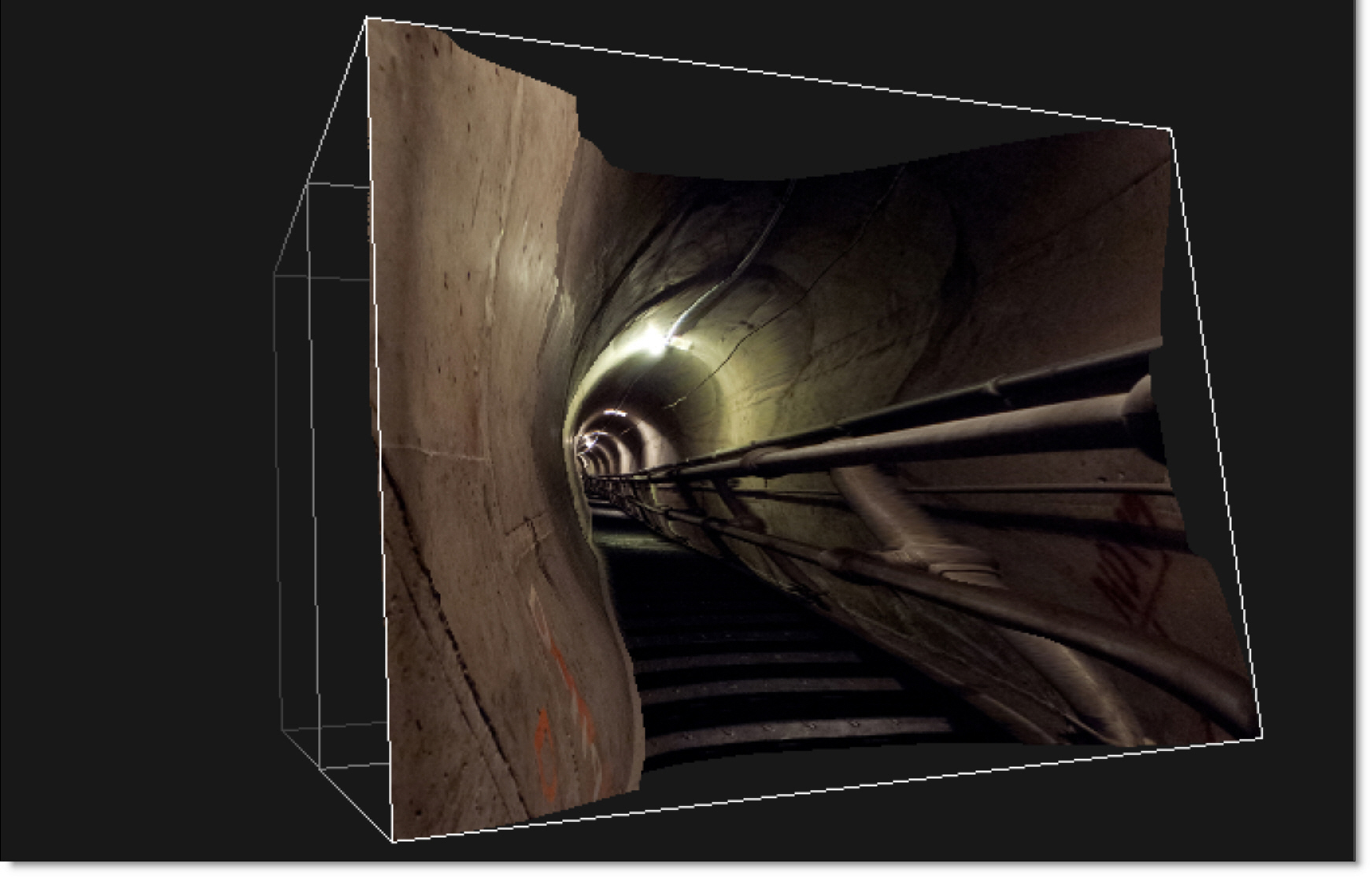
Clicking and dragging will move the image around in a perspective view.
Depth Preview Pan/Zoom Shortcuts
Shortcut | Action |
|---|---|
Click and drag | Rotates the image in a perspective view |
Scroll wheel | Zooms the image in and out |
Shift-Middle-mouse drag | Zooms the image in and out |
Space Bar-Shift-move mouse up/down | Zooms the image in and out |
Space Bar-move mouse | Pans the image |
Middle-mouse drag | Pans the image |
Middle-mouse double click | Fits the image in the Viewer |