SynthEyes 3D Track / Card Conversion
There are various options to convert 3D trackers or cards in any Tracker capable node.
Layer From 3D Points
Generate a tracked layer from a selection of four or more 3D track points. The layers can then be used for Match Moving and Stabilization in any node that supports layers.
1 Connect the Data output from a SynthEyes node to the Data input located at the top-right corner of a Tracker node.
2 With the Tracker tool selected, click on the Point Tracker tab.
3 Select 3D track points:
• Drag select a minimum of four 3D track points.
or
• Select one or more shapes and the points within the shape are automatically selected.
4 Choose Create > Layer from 3D Points.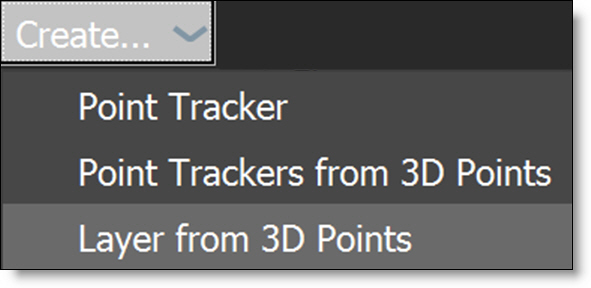
A tracker layer is created in the Object List. If shapes were selected, they are placed within the layer.
Convert Cards To Layers
Convert SynthEyes node cards to layers.
1 Connect the Data output from a SynthEyes node to the Data input located at the top-right corner of a Tracker node.
2 Select the Tracker tool.
There are two methods to convert cards to layers: Import from Data Port and Point Tracker > Create menu.
Import from Data Port
1 Choose Import From Data Port in the I/O section.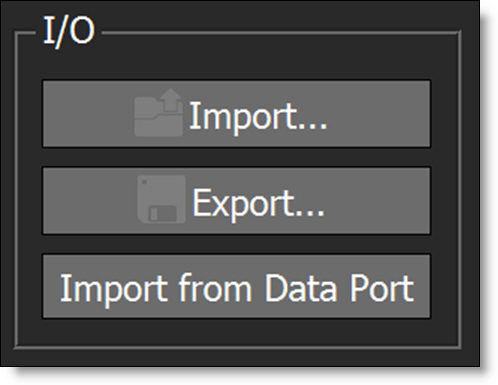
All cards from the SynthEyes node are imported and converted to layers in the Object List.
Point Tracker > Create Menu
1 Select the Point Tracker tab.
2 Click on a card to select it.
3 Choose Create > Layer from Card.
The selected card from the SynthEyes node is converted to a layer in the Object List.
Convert 3D Trackers To 2D Point Trackers
1 Connect the Data output from a SynthEyes node to the Data input located at the top-right corner of a Tracker node.
2 With the Tracker tool selected, click on the Point Tracker tab.
3 Drag select the 3D track points to be converted to 2D point tracks.
4 Choose Create > Point Trackers from 3D Points.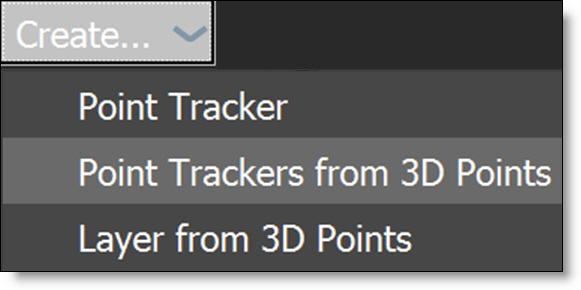
Point trackers are created and appear in the Object List.